
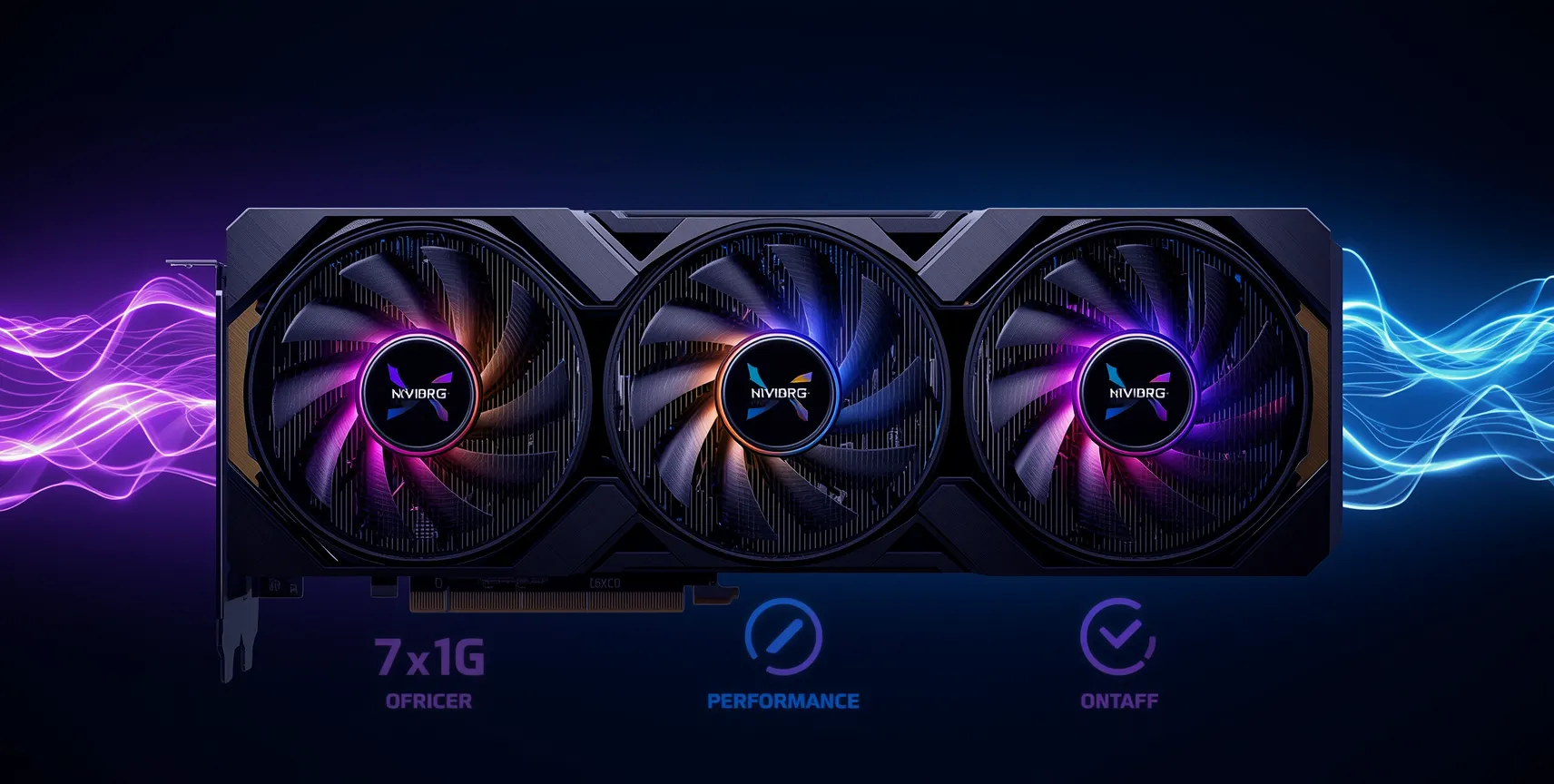
Hardware-Accelerated GPU Scheduling in Windows 11: On vs Off Performance Analysis
Hardware-Accelerated GPU Scheduling in Windows 11: On vs Off Performance Analysis
Modern graphics architecture demands highly efficient communication pipelines between the operating system, processing cores and video memory. Windows 11 includes a native low level configuration known as Hardware Accelerated GPU Scheduling (HAGS) to optimize this critical data pathway. Activating this framework alters how system commands are prioritized, impacting rendering speeds and overall frame pacing during intense processing loads. This technical evaluation covers the internal operations of this feature to help you determine whether enabling or disabling it suits your specific gaming build.
Decoding the Architecture of Hardware Accelerated GPU Scheduling
Traditional graphics rendering relies heavily on a software based command submission queue managed directly by the operating system kernel. The Windows display driver model regularly interrupts the central processing unit to allocate memory resources and schedule active graphic rendering tasks. This continuous shifting of control creates an inherent computational latency overhead that limits data processing speeds. Hardware Accelerated GPU Scheduling removes the operating system from this loop by shifting resource management to a dedicated hardware based scheduling processor built inside modern graphics cards.
Technical Advantages of Enabling HAGS on Modern Systems
Transitioning the scheduling load from software abstraction directly into dedicated graphics hardware yields noticeable stability improvements across specific system configurations. Reducing structural latency allows processing frames to move through the display engine pipeline with fewer processing stops. Gamers running modern hardware configurations will notice distinct processing improvements when configuring their operating system settings to utilize this hardware centric scheduling mode:
Unlocking Advanced AI Upscaling Engines (Nvidia DLSS 3)
The most critical requirement for enabling Hardware Accelerated GPU Scheduling is its role as a prerequisite for advanced frame generation technologies. Nvidia’s DLSS 3 architecture utilizes artificial intelligence neural networks to generate completely new frames without relying on traditional game engine rendering loops. This deep learning interpolation hardware requires direct, low level access to the GPU memory controller and hardware schedulers. Disabling this Windows setting entirely blocks the frame generation toggle in modern gaming menus, capping your performance capabilities.
Reducing Processor Overhead and Latency Bottlenecks
Systems featuring entry level or mid range processors experience the highest performance delta when hardware scheduling handles background queue tasks. Freeing up core cycles on the central processor reduces internal latency spikes and minimizes execution thread delays. This optimization produces a smoother frame delivery rate, as the processor is no longer forced to handle high-frequency interrupt commands from the graphics display driver during compute-heavy gaming sequences.
Performance Metrics: Benchmarking HAGS Across Different Tiers
The actual performance impact of hardware scheduling is not uniform across all desktop computer builds. Diverse system components alter how the operating system handles graphics memory management and instruction queues. Benchmark testing reveals clear behavioral variations across different generations of computer hardware:
Impact on High-End Graphics Cards (RTX 40-Series and RX 7000-Series)
Enthusiast tier graphics cards equipped with substantial video memory capacities show minimal changes in pure average frame rates with hardware scheduling active. These processing units already possess massive computing bandwidth, meaning the structural scheduling shift yields less than a two percent difference in standard rasterization tasks. The primary benefit for high end setups remains purely tied to frame generation mechanics and input latency stability rather than massive raw processing improvements.
Behavior on Legacy and VRAM-Constrained Hardware
Older graphics cards running on limited video memory bandwidth occasionally experience degradation in frame pacing consistency when hardware scheduling handles the memory allocation map. Legacy display architectures sometimes struggle with the aggressive memory management profiles enforced by hardware based schedulers. This mismatch can trigger sudden micro stuttering or momentary frame drops in modern triple A gaming engines that require massive, continuous asset streaming.
Step-by-Step Guide to Activating HAGS in Windows 11
Enabling this hardware-scheduling feature requires navigating the core display configuration menus within the Windows operating system environment. The process requires administrative access and a system reboot to successfully reinitialize the display driver subsystem architecture. Follow these exact steps to activate the low-level graphics management framework on your computer.
Accessing Advanced Graphics Configurations
Open the main Windows 11 Settings menu by pressing the Windows Key and I simultaneously on your keyboard. Select the System category from the primary navigation sidebar, then click on the Display sub menu option located in the right hand panel. Scroll through the available display options until you locate the Graphics settings block, then click it to open the application specific rendering preference window.
Modifying the Default Graphics Architecture
Locate the Default graphics settings hyperlink placed at the top of the graphics control panel window. Click the link to reveal the toggle switch labeled ‘Hardware-accelerated GPU scheduling. Move the slider mechanism to the On position, then save your changes by closing the interface window. A full system restart is mandatory to reallocate the memory scheduling map at the kernel level.